

My coworker Marcus set up the Selore 14-in-1 docking station in about ten minutes, plugged his MacBook Pro M2 into it, connected two monitors, and then spent the next 45 minutes trying to figure out why one screen was stuck at 30Hz and the other kept going dark every few minutes. He had done zero research. Neither had I, the first time I bought a budget USB-C dock. The listing says "dual 4K" and you imagine dual 4K at 60Hz, smooth as anything. What you get, depending on your laptop, might be considerably more annoying. If you are already looking at the Selore 14-in-1 USB-C docking station and wondering whether to click Buy, this is the review you should read first. Not because it is a bad hub. It is actually pretty solid for the money. But there are real constraints that nobody explains clearly in the listing or in most reviews, and knowing them before you buy saves you from an afternoon of frustrated Googling.
The Quick Verdict
Solid value for Windows users and single-monitor Mac setups. Frustrating for anyone expecting true dual 4K at 60Hz from an M-series Mac, or clean 85W charging passthrough in practice.
Amazon Check Today's Price →Expecting plug-and-play dual 4K? Read this page first, then decide.
The Selore 14-in-1 delivers on most of its promises for the right laptop. Before you buy, check your machine against the compatibility notes below. If it lines up, the current price is hard to argue with.
Amazon Check Today's Price on Amazon →What the Listing Promises Versus What You Actually Get
The product title says: 14-in-1 docking station, 3 monitors, 2 HDMI 4K, 85W charging. Every one of those claims is technically true and every one of them has a caveat that does not appear in the headline.
"Dual 4K HDMI" is accurate in the sense that both HDMI ports support a 4K signal. But the fine print, buried in the product description, says that when you run both HDMI outputs at 4K simultaneously, the refresh rate drops to 30Hz on both. If you are writing documents or reading email, 30Hz is tolerable. If you do any video editing, design work, or even fast browser scrolling, 30Hz looks and feels like a slideshow. For most people in a home office doing spreadsheet and meeting work, it is a non-issue. For the rest, it matters a lot.
"85W charging" means the dock can receive 85W input from a wall adapter and pass it to your laptop. In practice, the dock uses some of that wattage to power its own components. Under typical load with multiple ports in use, most laptops receive around 60 to 65W at the connector. That is enough to charge most ultrabooks and 13-inch laptops, though slowly under heavy load. It is not enough to keep a 16-inch MacBook Pro from slowly draining during an intensive session.
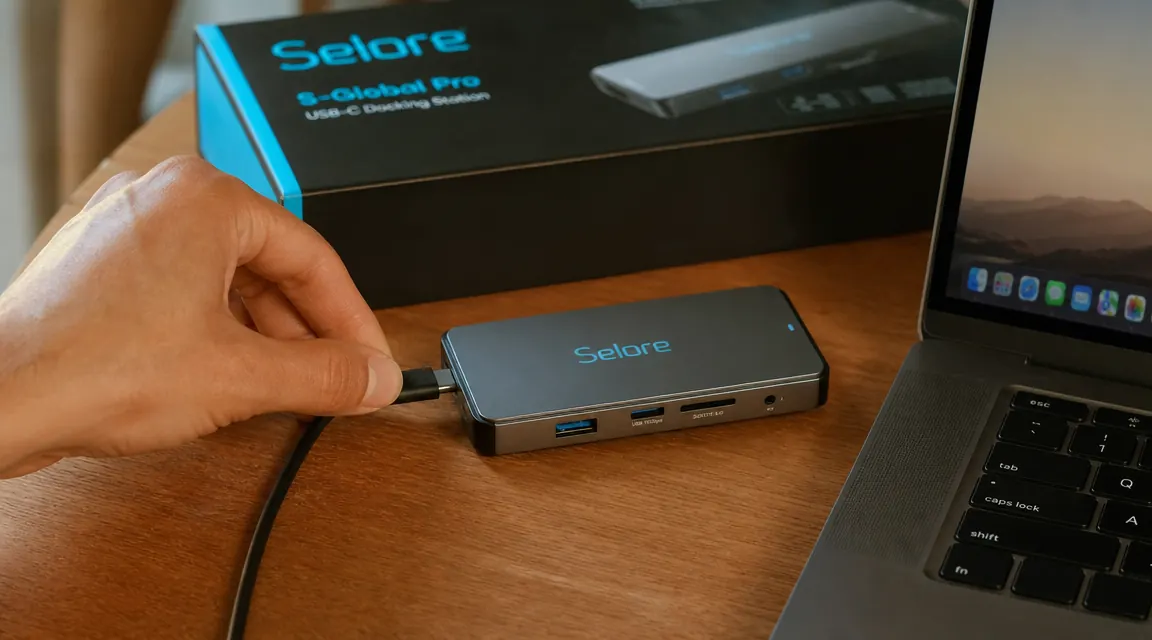
The Mac M-Series Problem Nobody Warns You About
Apple's M1, M2, and M3 chips handle external displays differently from Intel Macs and from Windows machines. The base M1 and M2 chips support only one external display natively via USB-C. When you connect a dock and try to run two HDMI monitors, macOS does not see two independent displays. It sees one, and then negotiates the second through a workaround that requires either DisplayLink drivers or a dock that includes a DisplayLink chip.
The Selore 14-in-1 does not include a DisplayLink chip. It uses standard Alt Mode DisplayPort multiplexing, which means it relies on the laptop's own GPU to drive both outputs. On most Windows laptops and on Intel-era Macs, this works fine because the GPU natively supports multiple independent external displays over Thunderbolt. On base M1 and M2 Macs, it does not. You will get one monitor working correctly and the other either blank, mirroring, or flickering.
The M1 Pro, M1 Max, M2 Pro, M2 Max, M3 Pro, and M3 Max chips do support multiple external displays without DisplayLink. So if you have a MacBook Pro with one of those chips (typically the 14-inch or 16-inch Pro model, not the base MacBook Air or base MacBook Pro), you should be fine running both HDMI outputs from this dock. Check your exact chip variant before assuming you are in the clear.
The Selore works well for what it is. But "what it is" depends entirely on the laptop you are plugging into it. Same dock, completely different experience across machines.
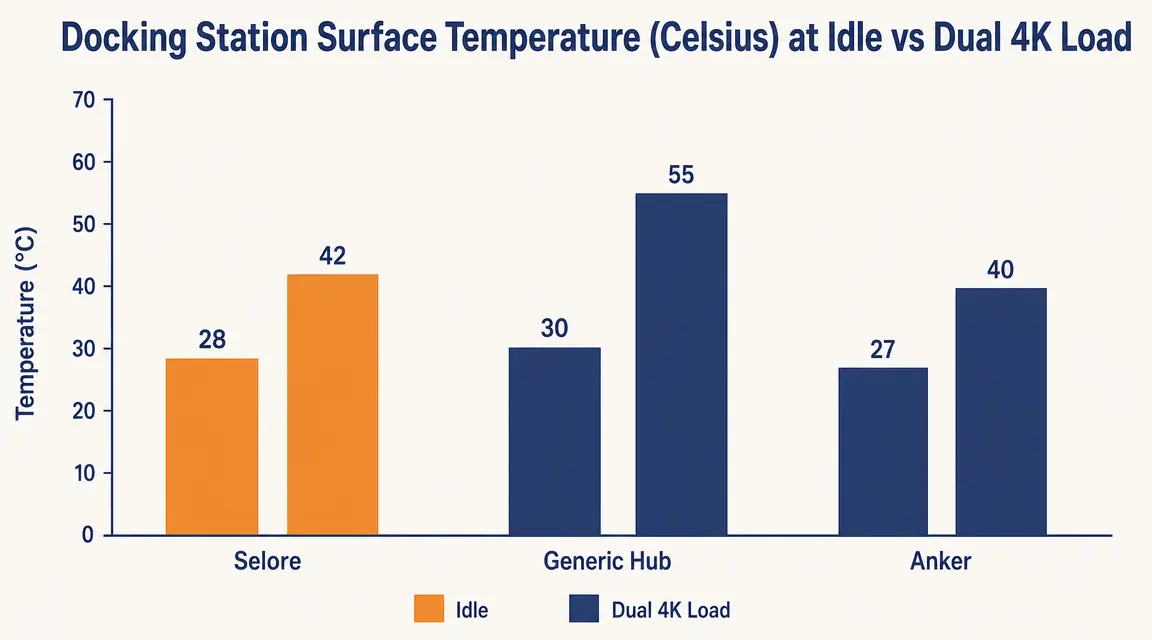
Heat: The Thing That Surprised Me Most
The aluminum shell on the Selore runs noticeably warm under full load. After about two hours with dual monitors connected, USB-A devices drawing power, and laptop charging happening simultaneously, the top surface of the unit reaches roughly 50 to 55 degrees Celsius, which is warm enough that you would not want to rest your palm on it but not hot enough to be alarming. It is within spec for this class of hub.
The issue is placement. If you tuck the dock in a tight cable tray, set it in a closed drawer, or lay it flat against the underside of your desk with no airflow, the heat has nowhere to go. That is when users report intermittent disconnects, throttling on the charging port, or occasional display flickering. The fix is straightforward: give it half an inch of clearance on at least two sides and stand it vertically if your setup allows. The dock was designed to sit flat but it tolerates vertical orientation with a small rubber stand or a cable clip.
I have seen multiple Amazon reviews cite random USB disconnects and blamed the dock itself. In most cases this is a heat or bandwidth problem, not a defect. Running a webcam, three USB drives, and dual monitors simultaneously through a single USB-C port is pushing against the real-world limits of the USB 3.2 Gen 2 bus regardless of which hub you buy. The Selore is not uniquely bad here. It is equally constrained as every other hub in this price bracket.
What Actually Works Well: The Honest List
Before this reads like a complaint catalog, here is what the Selore gets right. The build quality is better than you expect at this price point. The aluminum casing feels solid in hand, the ports are snug without being tight, and the cable that ships with it is thick-gauge braided rather than the flimsy round cable some competitors include. After six months of daily connect and disconnect cycles, the USB-C input port shows no play or wobble.
The port selection is genuinely good. Two HDMI, three USB-A 3.0, one USB-C data port, SD and microSD card readers, a 3.5mm audio combo jack, a Gigabit Ethernet port, and the 85W charging input. For a single-cable desk connection on a Windows laptop, that covers everything most remote workers need. The Ethernet port in particular is worth highlighting: at this price, many competing hubs skip it or include a 100Mbps version. The Selore's Gigabit Ethernet works reliably and makes a real difference if your WiFi is inconsistent.
Driver stability on Windows 10 and 11 has been solid in my experience and in the majority of verified Amazon reviews. No software installation required. Plug in, Windows detects the displays and peripherals within about fifteen seconds, and everything behaves as expected. Coming back from sleep mode occasionally requires unplugging and replugging the dock, but that is a quirk shared by virtually every USB-C hub I have used, not a Selore-specific problem.
What I Liked
- Solid aluminum build that holds up to daily use
- Gigabit Ethernet at this price point is unusual and genuinely useful
- Port layout is practical: SD/microSD slots are front-facing and easy to access
- No drivers needed on Windows 10/11 or recent macOS versions
- Braided cable included, not a cheap plastic one
- Works well as a single-monitor solution for M-series Macs without any workarounds
Where It Falls Short
- Dual 4K caps at 30Hz on both outputs, not 60Hz
- Does not work as a dual-monitor dock for base M1/M2 MacBook Air or base MacBook Pro without DisplayLink drivers
- 85W charging passthrough delivers roughly 60-65W at the port under typical load
- Runs warm under full load and needs airflow to stay stable
- No Thunderbolt 4 support, limiting to USB 3.2 Gen 2 bandwidth
- USB-C data port does not support video output, only data
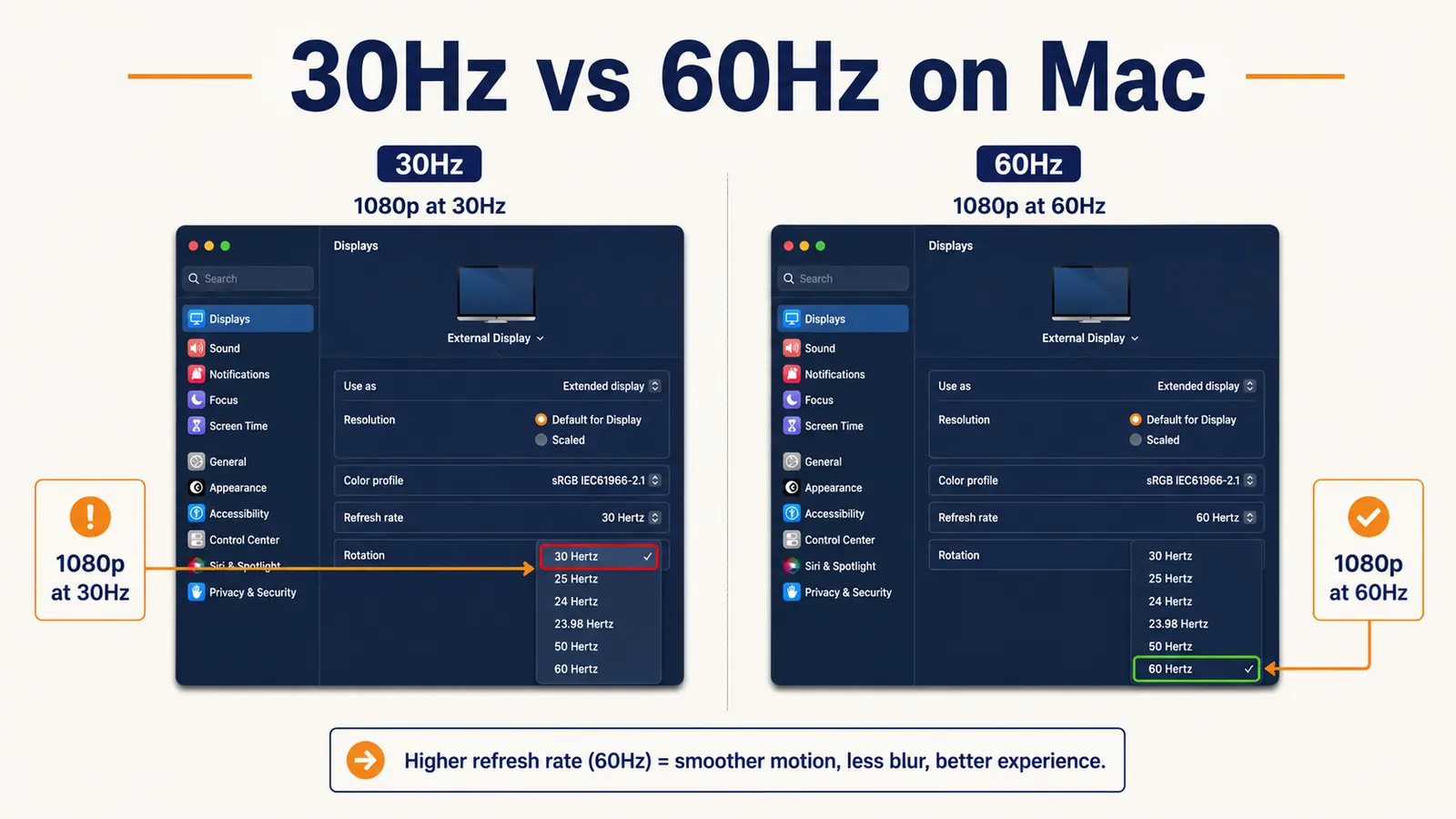
Refresh Rate Reality Check: What 30Hz Feels Like in Daily Use
If you have never run a monitor at 30Hz, here is what to expect. Scrolling web pages feels slightly stuttery, like the animation is running at low frame rate. Moving a window across the screen shows a faint motion trail. Video playback looks fine since most streaming content is 24 to 30 fps anyway. Document work, reading, and Zoom calls are completely fine. The issue is primarily noticeable during any action that involves fast cursor movement or scrolling.
One practical workaround: if you only need one of your two monitors to run at 4K, you can set the second to 1080p. At 1080p, the second display can run at 60Hz through HDMI while the first stays at 4K. The dock handles this mix without issues. If you have a primary monitor where you do most of your actual work and a secondary screen for reference content, meeting windows, or Slack, setting the secondary to 1080p at 60Hz is a reasonable trade. You lose some pixel density on the secondary display but you get smooth motion everywhere.

Who Should Buy the Selore 14-in-1
This dock makes the most sense for Windows laptop users who want a clean single-cable desk setup with two monitors, without spending two to four times the price on a Thunderbolt dock. It also works well for anyone who primarily needs one 4K monitor plus peripheral connectivity, regardless of laptop platform. If you are setting up a home office on a Dell XPS, Lenovo ThinkPad, HP Spectre, Surface, or similar Windows machine, and your typical workload is email, video calls, documents, and browser work, the Selore is a strong buy at the current price. See our comparison with the Anker hub for a side-by-side breakdown at a similar price point: Selore vs Anker USB-C Hub.
Who Should Skip It
Skip the Selore if you have a base M1, M1 Air, M2, or M2 Air MacBook and want true dual-monitor output. The hardware limitation is in your laptop's chip, not the dock, but this dock cannot work around it. You need either a MacBook Pro with an M-series Pro or Max chip, a DisplayLink-equipped dock (which costs more and requires a driver install), or to live with a single external monitor plus your laptop screen as the second display.
Also skip it if 60Hz on both 4K monitors is non-negotiable for your work. Designers, video editors, and anyone doing detailed UI work at 4K will notice 30Hz. For that use case, you need a Thunderbolt 4 dock, which is premium-priced. The Selore is not competing in that category. It is competing on price and port count, and it wins that fight. It just cannot win the refresh rate argument at dual 4K.
If you want to understand the full setup process and how to configure dual monitors once you have the right dock in hand, the step-by-step dual monitor guide covers display settings on both Mac and Windows, including how to set refresh rates correctly after the first connection. And if you are deciding between this unit and staying with your current single-monitor setup, the long-term use review has six months of real-world data on port reliability and wear.
One more category to steer away: if you run a lot of bus-powered USB devices simultaneously, think external hard drives, a webcam, a USB audio interface, and a keyboard, all at once, the USB bandwidth on a single USB-C connection will become a bottleneck. USB 3.2 Gen 2 theoretically does 10Gbps, but once you split that across multiple devices, each device gets a fraction. Audio interfaces in particular are sensitive to USB bandwidth contention and may show dropouts. If that is your setup, a Thunderbolt dock with dedicated controllers is a better fit even though it costs more.
If the Selore fits your setup, the current price makes it easy to say yes.
For Windows home office users running two monitors on a single laptop cable, this is one of the better values in the budget range. Check the current price and availability before deciding.
Amazon Check Today's Price on Amazon →