
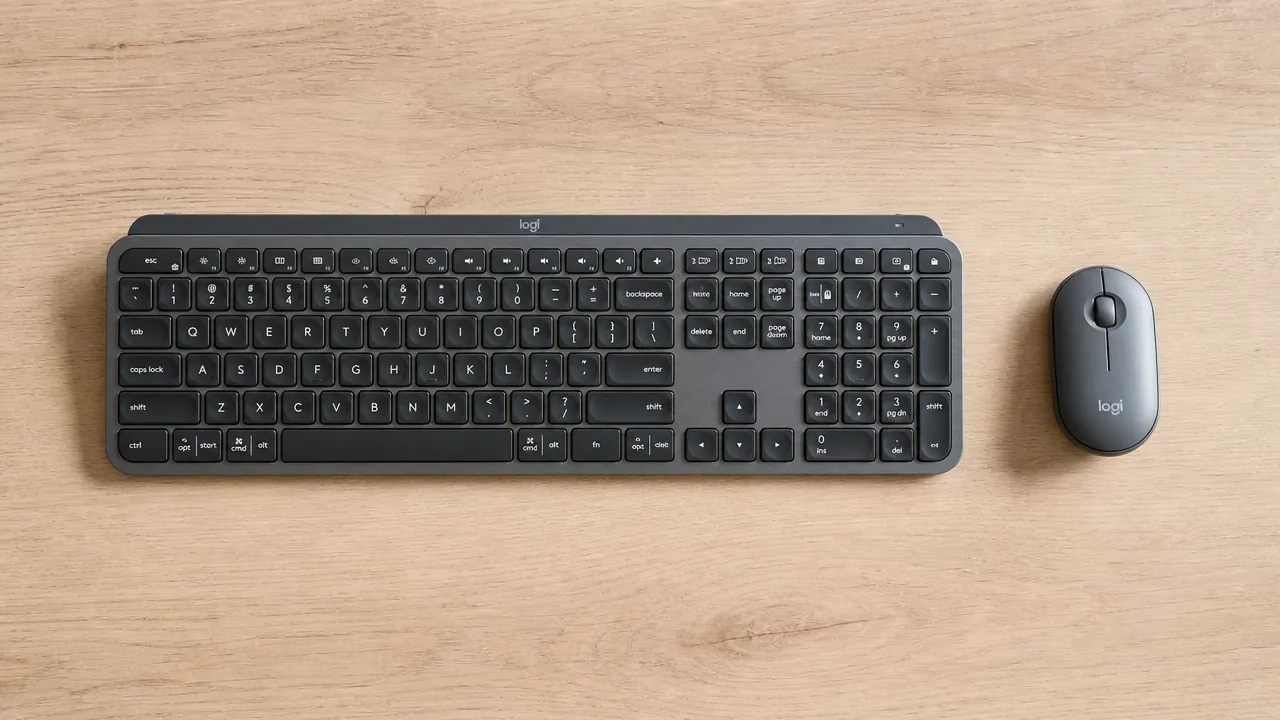
Here is what the Logitech MK270 does not have: backlit keys, a Bluetooth connection, adjustable DPI, a full-size mouse, a tactile typing feel, or any business selling on your desk if you do serious creative work after dark. That is not a criticism. That is just the honest setup to this review, because 100,000-plus Amazon ratings will tell you plenty about what the MK270 gets right, and almost nothing about what it trades away to hit that price. This review covers the trades.
The MK270 is the Logitech wireless keyboard and mouse combo priced in the budget range. It ships as a pair, uses a single 2.4GHz USB nano receiver, and runs on AA batteries. Most of its buyers are remote workers, students, and home office setups on a budget. If that describes you, keep reading. I will tell you exactly who this combo is right for and who should spend more.
The Quick Verdict
A genuinely solid budget combo let down by a too-small mouse, no backlight, and membrane keys that will disappoint anyone upgrading from a mechanical board. For basic daily office work at a desk with decent lighting, the reliability and battery life are hard to beat at this price.
Amazon Check Today's Price →Budget-conscious buyer who just wants a clean, wireless desk? The MK270 earns its 100,000 reviews.
Plug-and-play on Windows. One nano receiver. No drivers. Batteries included. For basic office work, it does everything it needs to do.
Amazon Check Today's Price on Amazon →The Keys Feel Soft. Not Bad, Just Soft.
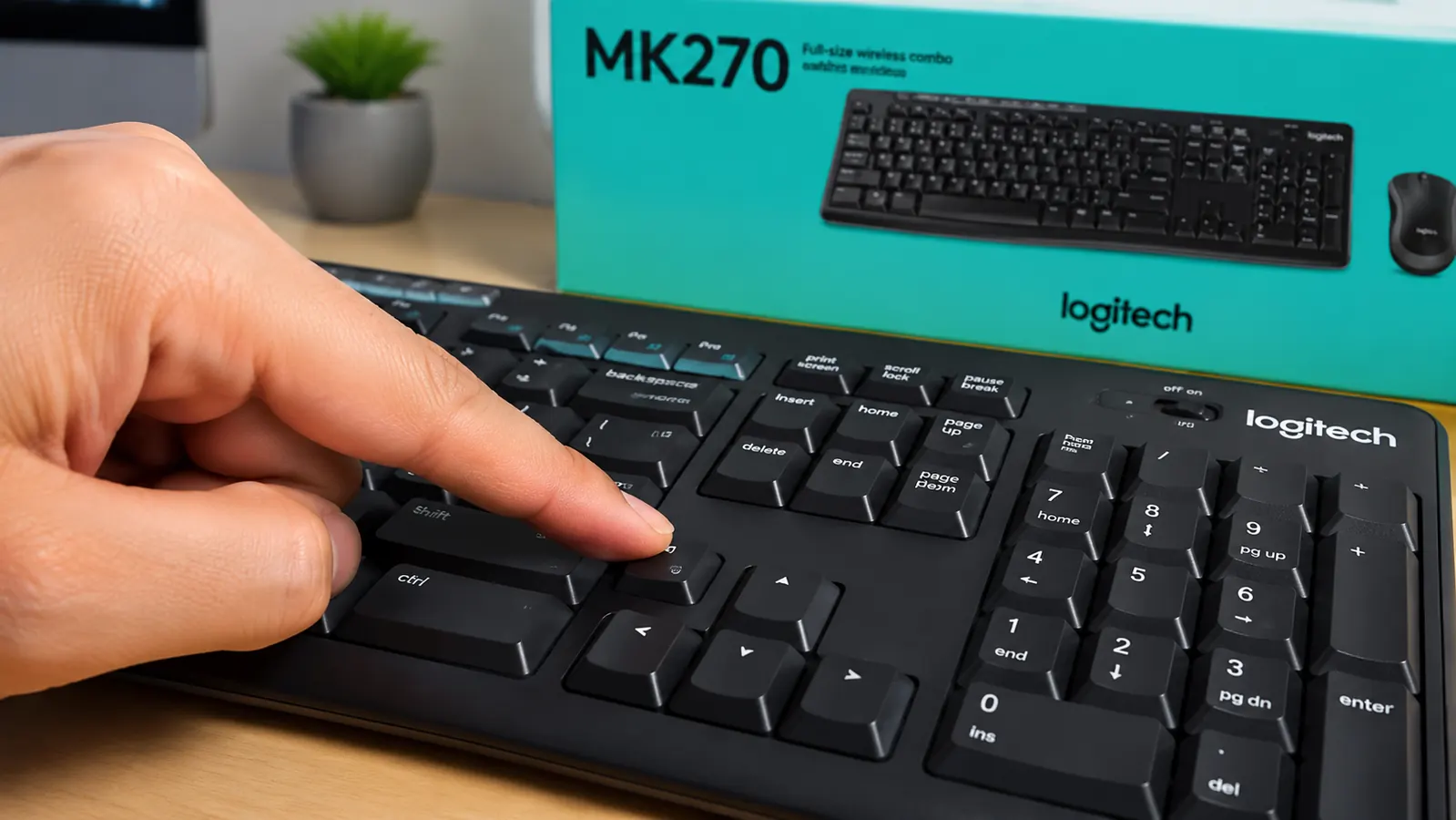
The MK270 uses membrane switches. Each key has a rubber dome underneath that compresses when you press and springs back when you release. The actuation force is light, travel is around 2mm, and there is no tactile bump confirming the keystroke. You press down and the key registers somewhere in that soft squishy travel. Some people call this feel mushy. That is accurate. It is not painful to type on, but it is not satisfying either.
If your baseline is a laptop keyboard, the MK270 will feel about the same or slightly better because the keycaps are larger and spaced a little more generously. If your baseline is a mechanical keyboard with even a light tactile bump like a Cherry MX Brown, the MK270 is going to feel like typing through a pillow. That switch is not reversible. You do not get used to membrane and start preferring it. You either accept it or you do not.
The noise is actually a point in the MK270's favor. Each keypress is quiet enough for video calls without becoming a background soundtrack. The spacebar has a slight rattle but at this price that is the norm, not the exception. If your household is noise-sensitive or you work in a shared space, the MK270 is usable. It is not as quiet as the MK295 Silent combo, but it is nowhere near the clack of a mechanical board. For a deeper look at how these two Logitech options compare for noise specifically, the MK270 vs MK295 Silent comparison covers that tradeoff in detail.
The Mouse Is Small. Smaller Than You Think.
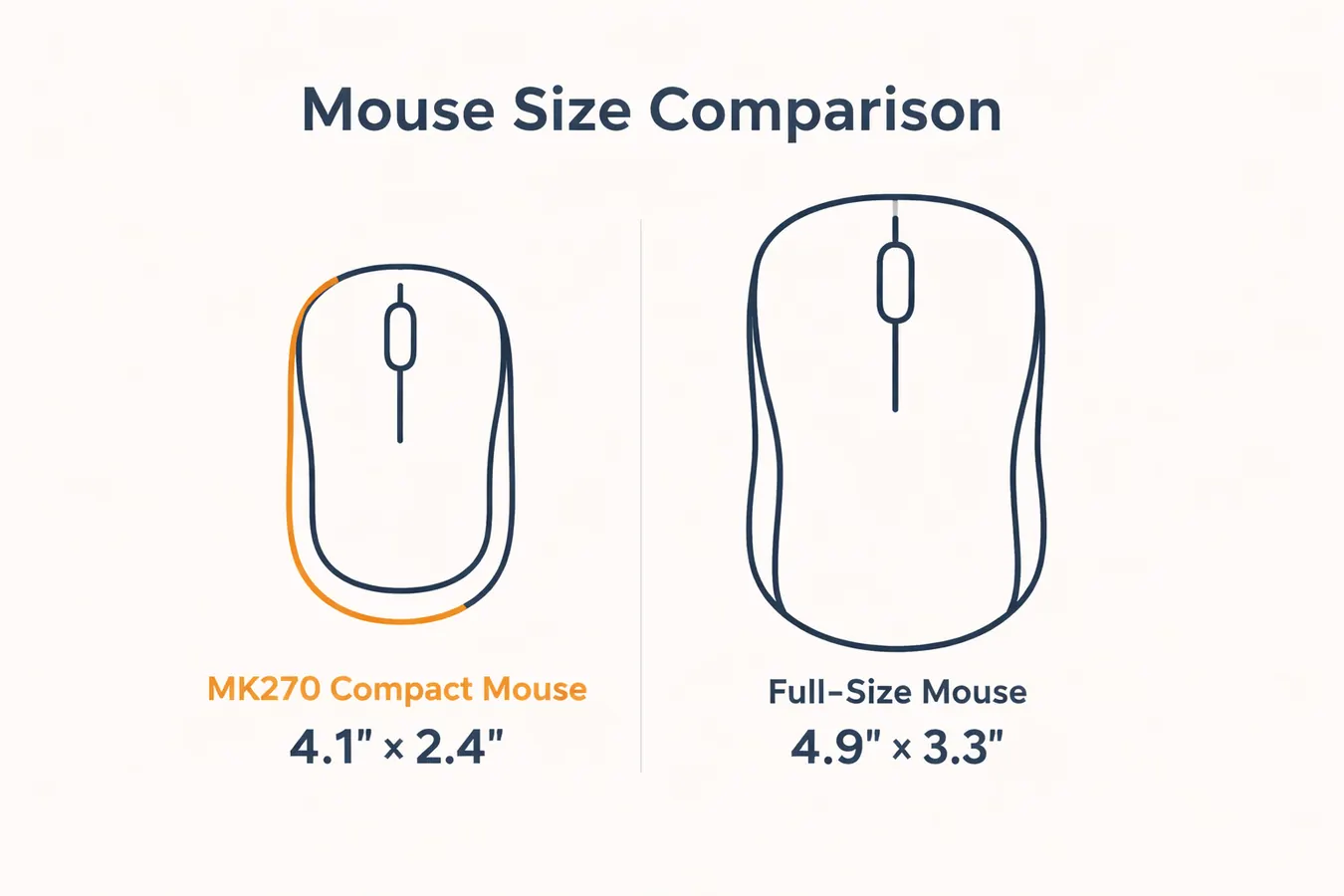
The included mouse is compact and right-handed. It measures roughly 4.1 inches long and 2.4 inches wide. For reference, a full-size mouse like the Logitech MX Master 3 is about 4.9 by 3.3 inches. That difference sounds minor on paper. In practice, if you have medium or large hands and you work at a desk for six or more hours a day, you will feel where your palm is not supported. Your fingers curl forward to reach the buttons and your wrist bears more of the load. After short sessions it is fine. After a full workday it is noticeable.
There is no DPI adjustment on this mouse. The optical sensor runs at a fixed sensitivity, which is fine for standard monitor work and browsing but sluggish for multi-monitor setups with high-resolution displays. If you are dragging a cursor across 5760 pixels of combined screen space, you will be picking up and repositioning the mouse more often than you want to. This is a mouse designed for single-monitor setups at standard resolutions. Use it for that and it works. Push it beyond that and its limits show quickly.
The scroll wheel is rubberized and responsive. The left and right buttons have a satisfying soft click. There is no side button on the right side, and the single back button on the left feels a bit close to the left-click for comfort if you have wide thumbs. None of these are deal-breakers for basic office use. They are just the reality of what fits inside a mouse at this weight and price.
The mouse is the honest weak point of this combo. It is good enough for basic use, but if you have large hands or work across multiple monitors, you will feel the limitations by afternoon.
No Backlight. Full Stop.
There is no key illumination on the MK270. The legends are printed on each key and visible in normal light. In a dim room or late at night with only a monitor glowing, the keys blend into the black plastic and finding symbols or function keys by sight becomes a real guessing game. If you are a touch typist who never looks down, this is irrelevant. If you glance at the keyboard during punctuation-heavy work or when hunting for a shortcut key, you will miss backlighting.
This is the most common complaint in the one- and two-star Amazon reviews for the MK270. Not connection problems, not build quality failures. Just: I wish it had backlighting. Logitech made a deliberate product decision to cut that feature at this price. The tradeoff is battery life. A backlit keyboard draws significantly more power than a non-backlit one, and the MK270's advertised 24-month keyboard battery life depends on zero illumination. If extended battery life matters more than typing in the dark, the MK270 wins that trade clearly.
The 2.4GHz Dongle: Reliable, but It Costs You a USB Port
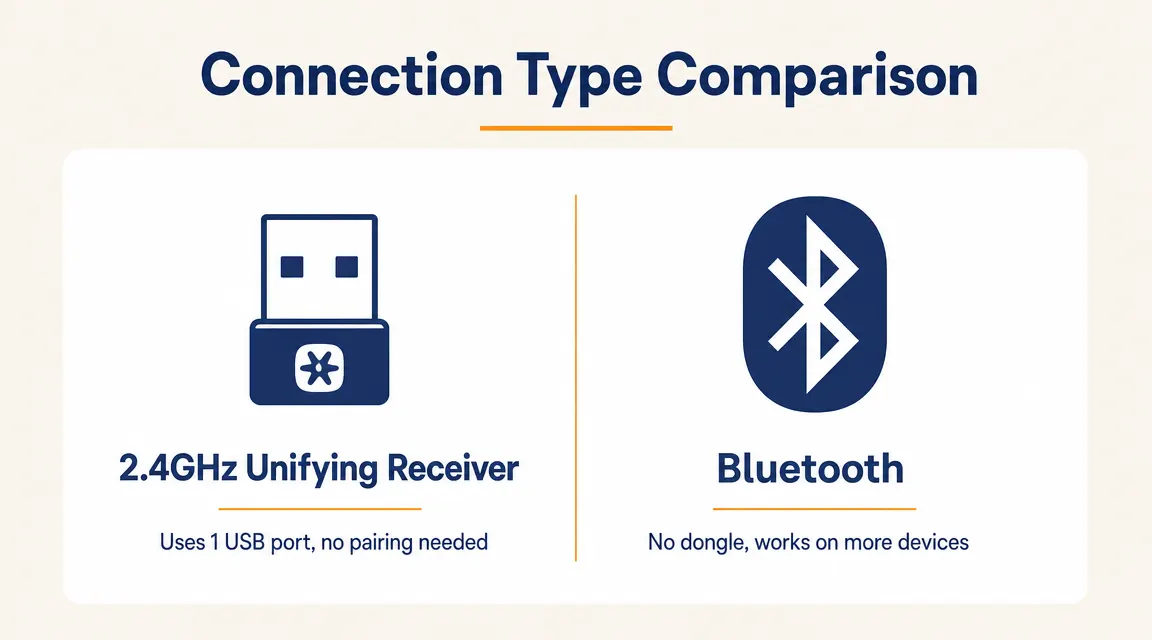
The MK270 does not use Bluetooth. It uses a dedicated 2.4GHz nano receiver that plugs into a USB-A port on your computer. The receiver is tiny, about the size of a thick thumbnail, and once it is in you can forget it exists. But it does occupy a port. On a laptop with only two USB-A ports that is a meaningful cost. On a desktop with six ports it is nothing.
The benefit of the 2.4GHz connection over Bluetooth is reliability. There is no pairing process, no device-switching lag, and no Bluetooth interference from phones and earbuds on the same 2.4GHz band. The connection has been consistently solid at distances well beyond normal desk use. If you want a wire-free desk without thinking about wireless management, the nano receiver approach is genuinely simpler than Bluetooth. You plug it in once and it works permanently.
The downside is device lock-in. The keyboard and mouse pair to this single receiver and only this receiver. You cannot use the MK270 on a laptop and a tablet by switching Bluetooth profiles. If you lose the receiver, you need a new combo. Logitech sells replacement Unifying receivers for some products, but this specific combo uses a dedicated receiver that is not interchangeable with other devices. For a home office worker with one machine, none of this matters. For anyone who rotates between devices, it matters a lot.
Battery Door Quirks and Build Reality
The keyboard battery door is on the underside and requires a coin or a fingernail to twist open. It is stiff the first time and then stays reliably closed. The mouse battery door is a simple push-and-slide on the bottom, easier to open but also occasionally opens by accident if you squeeze the mouse at the wrong angle during heavy use. These are small things. They matter at year two when a battery dies mid-workday and you are prying at plastic with your thumbnail.
The keyboard body is lightweight and all plastic. It does not have rubber feet that grip especially hard, so on a glass desk or polished surface it will shift slightly during fast typing. On a standard desk mat or wood desk it stays put well enough. The mouse has a smooth plastic underside that glides fine on a desk mat but can drag on bare wood if the surface is rough. A cheap mouse pad solves this entirely.
Build quality overall is exactly what the price says it will be. It does not rattle or creak during normal use. The keys do not wobble side to side. The mouse clicks are consistent. But if you knock it off your desk onto a hard floor, do not expect the same outcome you would get from a more expensive peripheral. The plastic on budget hardware has limited tolerance for impact.
What I Liked
- Reliable 2.4GHz connection that does not require any pairing or management
- Keyboard battery life is genuinely exceptional, close to the advertised 24-month spec
- Full-size layout with number pad and media key row for office work
- Quiet enough for calls and shared home spaces
- Nano receiver is tiny and stays plugged in without catching on anything
- Plug-and-play on Windows, zero driver or software setup required
- Budget-priced with both keyboard and mouse included
Where It Falls Short
- Mouse is too small for large hands during long workdays
- No key backlighting makes night work or dim rooms frustrating
- Membrane keys have no tactile feedback, will disappoint mechanical keyboard users
- Fixed DPI mouse is sluggish on multi-monitor or high-resolution setups
- Uses a USB-A port, not Bluetooth, so no easy device switching
- Loses the receiver and you lose the whole combo
- Plastic build is solid for the price but not durable under drops or heavy wear

Who Should Spend More
If you type for more than four hours a day and care how your keyboard feels, step up. A Logitech K380 or Keychron K3 in the mid range gives you either Bluetooth flexibility or real mechanical key feel, both of which the MK270 cannot offer. If you have large hands, the mouse situation alone is reason enough to look at a combo that includes a full-size mouse. If you frequently switch between a laptop and a tablet or second machine, a Bluetooth combo removes the single-receiver limitation entirely. And if your home office desk light is poor or you do meaningful work after sundown, paying a bit more for a backlit keyboard is a better evening-by-evening investment than squinting.
There is also the question of what else is on your desk. If you are already running a wireless setup and need to consolidate ports, a Bluetooth keyboard and mouse combo saves the USB-A slot the MK270 occupies. The how to declutter your home office with a wireless keyboard and mouse guide covers exactly this scenario, including how to choose between 2.4GHz and Bluetooth for different desk configurations.
Who the MK270 Is Actually Perfect For
The MK270 is perfect for someone who sits at a single Windows desktop or laptop, works in a normally lit room, types emails and documents and spreadsheets all day, and wants zero cables on the desk for a budget price. It is also excellent for a shared family computer or a dedicated home-office machine that never leaves the desk, because the nano receiver setup is simpler and more consistent than Bluetooth in a house with a lot of wireless noise from phones, speakers, and smart devices.
It works well as a secondary keyboard for a home server or media PC connected to a TV from the couch, because the 2.4GHz range is solid at 20 to 30 feet. It is a solid choice for a senior family member who wants wireless simplicity without any pairing procedures. And it makes sense as a low-risk first wireless purchase for someone who has always used wired gear and wants to try the transition without committing real money.
If you want the deeper reliability story on this combo, the long-term use review of the MK270 covers two full years of daily desk use, including a coffee spill and a battery replacement timeline. And if the reasons to go wireless beyond just this combo interest you, the 10 reasons a wireless combo upgrades your desk setup breaks down the bigger picture.
Know the tradeoffs and still think it fits? At this price it is genuinely one of the most reliable budget combos you can buy.
Ships with batteries included. Works out of the box on Windows. The nano receiver fits in your laptop bag without scratching anything. No setup headaches.
Amazon Check Today's Price on Amazon →